➡️ ➡️ ➡️ Two-Factor Authentication: iSchool now requires each student to enable Two-Factor Authentication (or “2FA”) for their WordPress account on this site. You have 30 days to do so, otherwise your account will be automatically locked out. We strongly recommend that you do not wait and instead enable 2FA as soon as possible using the instructions provided here: https://ischool.sjsu.edu/wordfence
The first thing to note is that you have two “profiles” associated with the class. One is the course site profile: seen on the right hand side of the course webpages. It will have your name you set up when you registered. The other is the WordPress profile seen in 2 different places: one is the the right hand side of the black navigation bar, and the other is on the left hand tool bar found in your WordPress dashboard. It is this last place you want to use…
Here is a quick workflow to set it up:
Log in to the course site. Go to your dashboard, seen on the black toolbar beneath your browser tool bar.
On the left-hand side, you will see “Profile” and below that you will see “Login Security”.
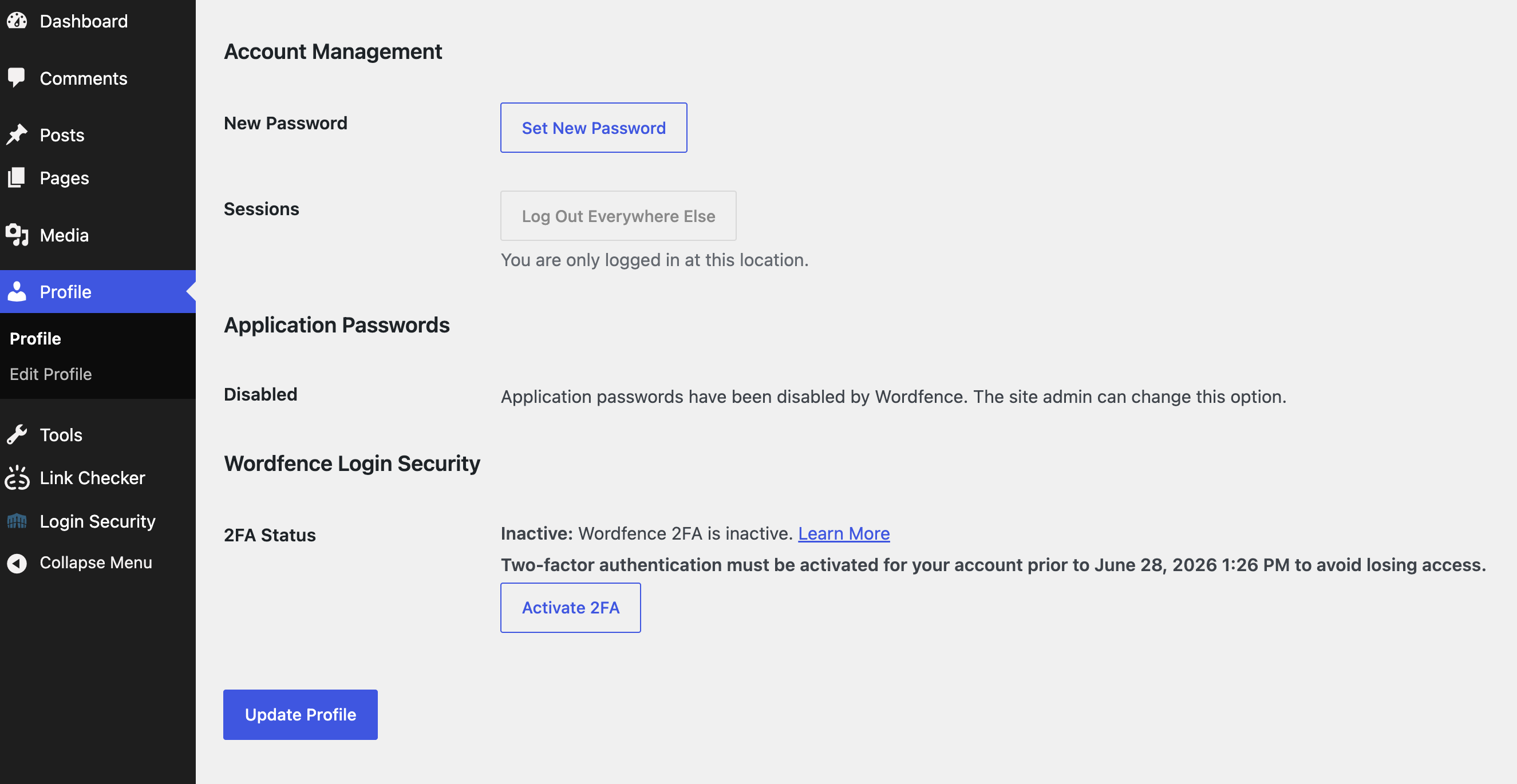
1) Hovering over “Profile” and clicking “Profile” will show your settings and at the bottom you will see “2FA Status” and “Activate 2FA”
Clicking “Edit Profile” will not show you the 2FA option – no idea why…
2) There should also be a “Login Security” option. Clicking that will show you the QR code to be used with the Duo Mobile app.

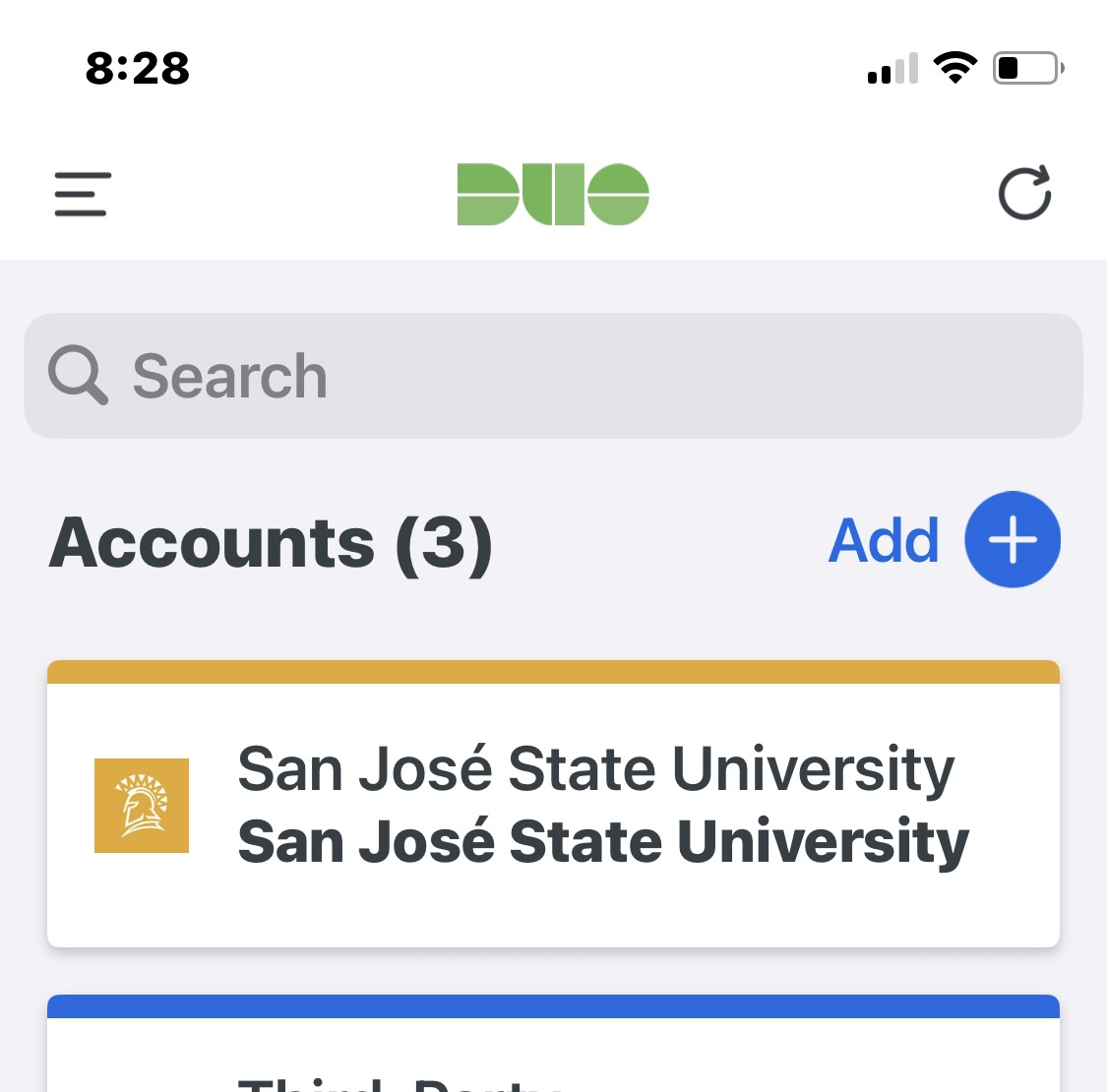
You’ll need the Cisco Duo Mobile app – which you might already have from setting up Canvas. Launching Duo will show you the front screen and at the top is the “Add+” icon.
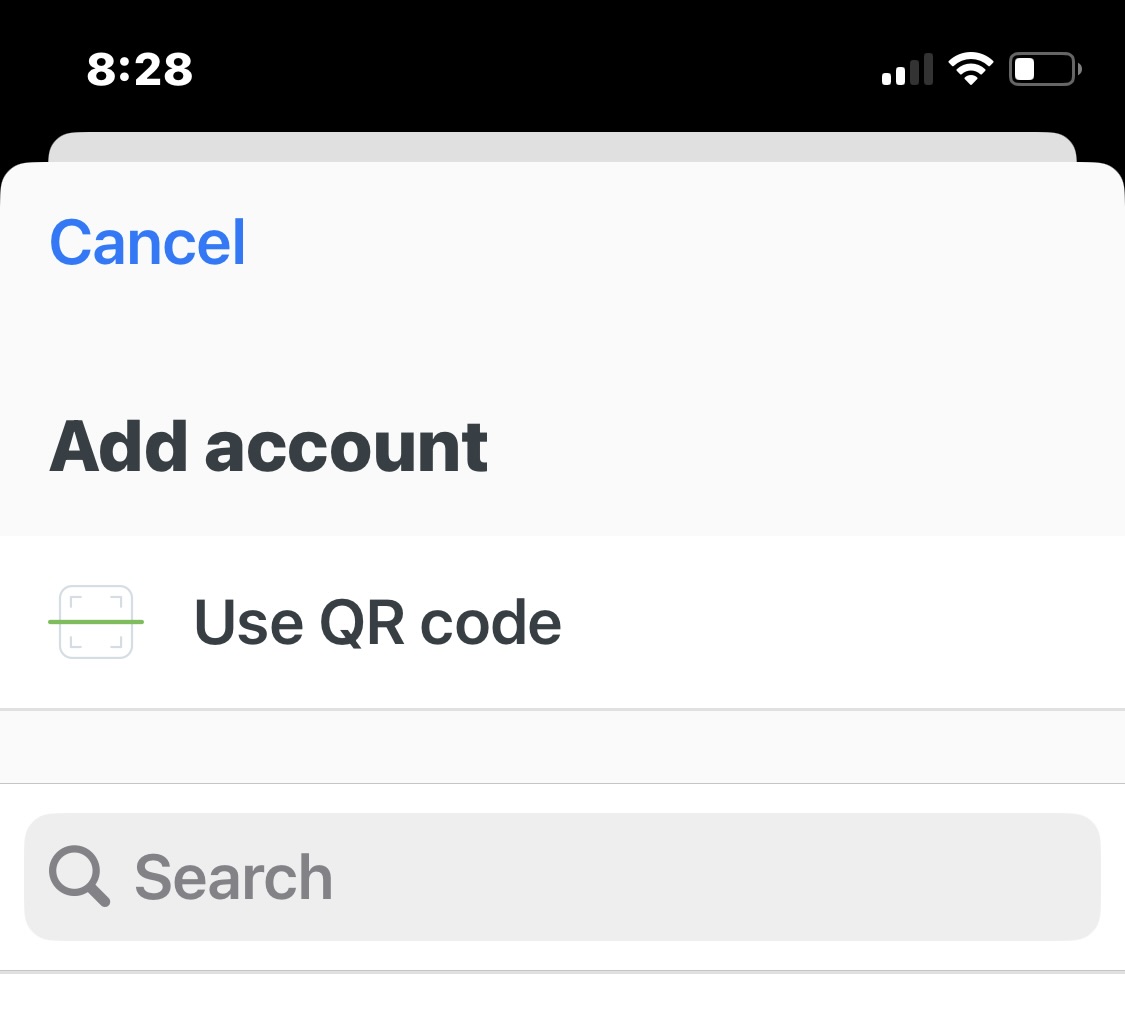
Selecting the “Add+” button will take you to the add account screen and at the top is the “Use QR Code” option.